
This is default featured slide 1 title

Go to Blogger edit html and find these sentences.Now replace these sentences with your own descriptions.This theme is Bloggerized by Lasantha Bandara - Premiumbloggertemplates.com.

This is default featured slide 2 title

Go to Blogger edit html and find these sentences.Now replace these sentences with your own descriptions.This theme is Bloggerized by Lasantha Bandara - Premiumbloggertemplates.com.

This is default featured slide 3 title

Go to Blogger edit html and find these sentences.Now replace these sentences with your own descriptions.This theme is Bloggerized by Lasantha Bandara - Premiumbloggertemplates.com.

This is default featured slide 4 title

Go to Blogger edit html and find these sentences.Now replace these sentences with your own descriptions.This theme is Bloggerized by Lasantha Bandara - Premiumbloggertemplates.com.

This is default featured slide 5 title

Go to Blogger edit html and find these sentences.Now replace these sentences with your own descriptions.This theme is Bloggerized by Lasantha Bandara - Premiumbloggertemplates.com.

7 Best Websites to Download Free PC Games


free-pc-games

Locating free PC games can be quite challenging. In contrast to mobile games, which are frequently available at no cost, PC games tend to be more expensive. Nevertheless, platforms such as Steam, Epic Games Store, and GOG frequently provide free games and significant discounts on popular titles. Additionally, numerous websites allow users to download PC games without charge. This guide will introduce you to thirteen of the best sources for finding and downloading PC games for free, encompassing both legal and potentially questionable sites that offer a variety of genres and game types.

Supported Platforms: PC (Windows and macOS).  
Gaming Genres Offered: Action, strategy, adventure, indie, and more.  
Free Games: Features weekly free game promotions; includes free-to-play options.  
User Interface: Sleek, contemporary, and user-friendly design.  
Regular Updates and New Releases: Continuously adds new titles and refreshes existing ones.  
Community and Support: Offers forums and customer assistance .  
DRM-Free Options: Some titles are available without digital rights management.

1 Epic Games

Key Features:

    Compatible Platforms: Available on PC (Windows and macOS).
    Game Genres Available: Includes action, strategy, adventure, indie, among others.
    Complimentary Games: Features weekly free game promotions and a selection of free-to-play games.
    User Experience: Offers a sleek, contemporary, and intuitive interface.
    Frequent Updates and New Launches: Regularly introduces new titles and updates to current games.
    Community Engagement and Assistance: Offers forums and customer support services.
    DRM-Free Choices: Certain games are available without digital rights management restrictions .

Epic-Game-Store
 
The Epic Games Store stands out as a leading platform renowned for its vast array of games. Users can legally download PC games and enjoy them on their devices. The store features a diverse selection, ranging from AAA titles to indie games developed by smaller studios. Additionally, the Epic Store hosts exclusive releases annually. It provides both premium and complimentary game collections.

Most titles available on the Epic Store are compatible with Windows and Mac operating systems. The platform encompasses various game genres, including action, strategy, role-playing, simulation, and more. Although not every game is free, Epic Games frequently offers complimentary titles and discounts, typically on a weekly basis and during special events. At the time of this writing, the store is currently hosting a holiday sale and providing several free games .

Games can be downloaded and played via the Epic Store application. The process of downloading games is notably simple: locate the desired game, download it, and begin playing on your device. For first-time users, it is necessary to create an account and install the Epic Games Launcher on their device. Once installed, users can explore the store, discover free games, and install them on their devices.

One can also acquire complimentary games during promotional events and incorporate them into their game library. These games can be launched directly from the application, allowing for immediate gameplay. Furthermore, the Epic Games Store launcher ensures that all games are automatically updated to their latest versions, providing an optimal gaming experience.

I commend the Epic Games Store for its straightforward and user-friendly interface. This simplicity facilitates easy navigation for users seeking to discover and download free games. In summary, the Epic Games Store stands out as an excellent choice for PC gamers desiring a seamless downloading experience. With its intuitive design and regular discounts, users can effortlessly locate and download the finest free games for their PCs. Additionally, the Epic Web Store can be utilized to explore games and add them to one’s library .

Instructions for Acquiring Free Games from the Epic Store:

1. Download the Epic Store application compatible with your device, available for both Windows and Mac.
2. Navigate to the browse tab, select the filter, click on the price option, and choose Free.

Here, you will find a comprehensive list of all free games currently offered on the Epic Store. Select any game and click the get button to download it at no cost. The game will then be added to your Epic Games library. Proceed to the library tab, download the game, and install it on your device. 

 Visit the Epic Game Store

2 Steam Powered

Steam-Free-Games
Highlights:

- Supported Platforms: Compatible with PC (Windows, macOS, Linux) and VR.
- Gaming Genres Offered: A diverse range from AAA to indie across all categories.
- Free Games: Features numerous free-to-play titles.
- User Interface: Comprehensive yet somewhat intricate for newcomers.
- Regular Updates and New Releases: Provides consistent updates and new game launches.
- Community and Support: Boasts extensive community features, including forums, user reviews, and groups.
- DRM-Free Options: While most titles include DRM, a selection of DRM-free games is available.

Steam is a widely recognized gaming platform where users can access free PC games. The service presents a combination of free and paid games available for download. This selection encompasses both AAA and indie titles. Like the Epic Store, Steam frequently hosts discount sales and special promotions on its paid games. All games available on Steam are legitimate, allowing for hassle-free downloads.

Games on Steam are compatible with various operating systems, including Windows, macOS, and Linux. Users can check game compatibility in the game information section or utilize filters to identify compatible titles for their devices. The Steam application automatically organizes games based on the user's device.

Steam features a variety of game genres, including action, puzzle, strategy, adventure, and more. It offers a collection of both paid and free-to-play games, with some free titles potentially including optional in-game purchases.
 

Downloading games via Steam is an intuitive and uncomplicated process. To begin, one must install the Steam client application on their desktop and create a Steam account. Once this setup is complete, the Steam client serves as a central platform for purchasing, downloading, and managing your game library. Games can be downloaded and installed directly through the client interface.

Additionally, games acquired from Steam are eligible for automatic updates, ensuring that you always have the latest version. The platform also features a cloud save option, which enables you to save and continue your game progress across different devices. While the process of downloading and installing games is relatively simple, first-time users may find navigating the Steam interface somewhat daunting .

Steam also provides community support, allowing users to join groups, engage in discussions, and connect with fellow gamers. In summary, Steam is an excellent choice for legally downloading games on your device, offering a diverse selection of both free and premium titles across various genres and platforms.

To obtain free games from Steam, follow these steps:

1. Download the Steam application on your device, which is compatible with both Windows and Mac.
2. After installation, launch Steam and navigate to the Steam Store.
3. Click on the Categories section, scroll down, and in the filter tab, adjust the price setting to display free games.

Here, you will find a list of all available free games for download and play. Select any game and click on the play option. 

Visit the Steam Game Store

3.Battlenet

Battle-net-free-games
Highlights:

- Supported Platforms: Mainly available on PC (Windows and macOS) .
- Gaming Genres Available: Blizzard’s offerings encompass MMOs, RTS, card games, and FPS.
- Free Games: Certain titles feature free versions (such as the “World of Warcraft” starter edition) or free-to-play elements (like “Hearthstone”).
- User Interface: Intuitive and user-friendly.
- Regular Updates and New Releases: Yes, consistently provided.
- Community and Support: Includes forums and dedicated customer service.
- DRM-Free Options: Games are linked to the user’s Battle.net account.

Battle.net serves as a well-known platform for legally downloading free PC games. In contrast to Epic and Steam, Battle.net specializes in niche titles from Blizzard. It features both free and paid games, along with occasional discounts on various titles .

Games available on Battle.net are compatible with Windows and macOS. The platform includes popular titles such as World of Warcraft, Overwatch, Diablo, StarCraft, and Hearthstone, among others. However, discounts on these games are infrequent. While the majority of offerings are paid, there are several games with free-to-play components, including Hearthstone and World of Warcraft. Additionally, users can occasionally claim free games during promotional discounts, similar to the offerings from Epic and Steam.

The process of downloading games on Battle.net is straightforward. Users can create a Battle.net account and install the Battle.net desktop application on their devices. Once the app is installed, users can explore the Blizzard library, locate free games, and download titles directly through the application. The user interface is designed to be clean and easy to navigate, emphasizing community engagement and connectivity.
 
Visit Battle.Net Game Store

4 App Stores

Free-Games-on-Microsoft-Store

 Highlights:

- Supported Platforms: Compatible with Windows and Mac
- Gaming Genres Available: Mini and casual games
- Free Game Options: Some titles offer paid versions
- User Interface: User-friendly
- Regular Updates and New Releases: Yes
- Community and Support: User reviews available
- DRM-Free Choices: Available at no cost

The Microsoft Store and the Mac App Store are excellent options for acquiring free PC games. A diverse selection of games can be downloaded and played directly from these platforms, ranging from simple casual games to educational and more complex titles. It is important to note that while many games are free, some may include in-app purchases or advertisements.

Typically, the Microsoft Store features a broader array of games compared to the Mac App Store. This disparity is largely due to the greater popularity of Windows for gaming, leading more developers to create titles for this platform. The Microsoft Store also offers a wider variety of free AAA games and genres, including action, adventure, sports, and puzzle games. Both stores provide a combination of free and paid games, allowing users to easily locate and install free titles on their devices. The process of downloading and installing games from either the Microsoft Store or the Mac App Store is also quite simple .\

 Visit Microsoft Store

5 Ocean of Games

Ocean-of-Games-website

 
Highlights:

- Supported Platforms: Primarily PC Games, Mainly Windows
- Gaming Genres Offered: All popular titles – including GTA, FIFA, Call of Duty, and more
- Free Games: Free Cracked versions
- User Interface: User-friendly
- Regular Updates and New Releases: Not available
- Community and Support: Absent
- DRM-Free Options: Available at no cost

Ocean of Games primarily functions as a site for pirated content, where users can access and download cracked PC games without charge. The platform features unauthorized versions of well-known titles such as GTA, Call of Duty, FIFA, among others. It provides a vast selection of PC games across various genres, all available for free .

Games can be downloaded directly from the website using provided links. However, unlike traditional game stores, the installation process for games obtained from sites like Ocean of Games requires considerable manual effort. A diverse array of cracked PC games is accessible at no cost. It is strongly advised to scan any files downloaded to your computer prior to installation, as cracked games may harbor viruses that could pose a risk to your system.

 Visit Ocean of Games

6 iPC Game

ipc-games
Highlights:

- Supported Platforms: Primarily for PC Games, predominantly Windows
- Gaming Genres Available: A wide range of popular titles, including mini and casual games
- Free Games: Cracked PC games
- User Interface: User-friendly
- Regular Updates and New Releases: Not available
- Community and Support: Not provided
- DRM-Free Options: Available at no cost

iPC Games is a well-known platform for downloading free cracked PC games. Like Ocean of Games, iPC boasts an extensive library of PC games for download. Users can categorize games by various genres and utilize direct links for downloading and installing games. The installation process is manual, and while the user interface is straightforward and uncluttered, advertisements and intrusive pop-ups can be bothersome. Similar to Ocean of Games, locating specific titles can be challenging, as the site lacks filtering options for sorting games by device.

 
Visit iPC game
Windows 11 ISO Download Official Direct Download Links

Windows 11 ISO Download
To obtain the Windows 11 ISO file, you may utilize the direct links available in the article, which lead to secure official ISO files, or you can download them directly from Microsoft’s official website. Additionally, we have provided instructions for installing Windows 11, bypassing minimum requirements, and assisting with the initial setup process.

Whether you aim to perform a clean installation of Windows or resolve an existing issue, downloading and installing Windows via a bootable USB can be advantageous. You can acquire a copy of Windows 11, create a bootable drive, and proceed with the installation on your computer. There are numerous methods available for downloading ISO files, and I have outlined various approaches along with a guide to eliminate PC requirements for installing Windows 11.

Downloading the Windows 11 ISO File

Windows 11 can be downloaded officially from the Microsoft website or through Google Drive links, allowing you to save the file directly to your device. Numerous third-party options also facilitate straightforward downloads of Windows 11 ISO files. For a more streamlined process, you may utilize the official Microsoft Media Creation Tool to create a bootable version of Windows.

Latest: Download Windows 11 24H2 Update

The latest Windows 11 24H2 update has begun to roll out to all users. This update introduces new AI features for devices that support Copilot, along with various enhancements to the current Windows 11 operating system.

If you are utilizing a Copilot-enabled PC or are currently running Windows 11, you can download and install the most recent update on your device. Please refer to the ISO installation guide to bypass system requirements and install the latest Windows update using ISO files. Prior to proceeding, here are some known issues that users have encountered following the update to the 24H2 version .

Download Windows 11 24H2 English

Download Windows 11 24H2 German

Download Windows 11 24H2 Spanish 

 Download Links for Windows 11 ISO on Google Drive

While Microsoft provides a straightforward method for downloading the Windows 11 ISO, the process involves several steps. To simplify this, we have taken the initiative to download and upload the ISO to Google Drive, enabling you to obtain it with just one click. This method is both legal and secure, and I will ensure that the file is updated in accordance with the latest releases from Microsoft.

Download Windows 11 Disk Image (ISO) for x64 devices (English)

Download Windows 11 Disk Image (ISO) for x64 devices (Chinese)

Download Windows 11 Disk Image (ISO) for x64 devices (German)

 Obtain Windows 11 Through the Media Creation Tool

Windows 11 can also be acquired via the official Media Creation Tool provided by Microsoft. This tool allows you to either create a bootable USB drive or upgrade your existing Windows installation to the most recent version. It is user-friendly and provides step-by-step guidance throughout the process. Additionally, it guarantees that you receive the latest version of Windows. The tool is available at no cost for users of Windows 10 or Windows 11 .

 Download Windows 11 Installation Media

Download Windows 11 [23H2] ISO From Adguard

Adguard provides an extensive catalog of software and operating systems available for download. While it does not feature the most recent Windows versions, users can access all editions of Windows 11 (prior to 23H3) through the website.

Download the Windows 11 ISO file from Adguard

Download Windows 11 ISO File From Softonic

Additionally, the Windows 11 ISO file can be obtained from the well-known third-party platform, Softonic. This site also offers various programs and Windows 11 in multiple languages. To download, simply visit the website, click on the Download link, and proceed with the file download.

Download Windows ISO file via Softonic

Download Windows 11 Nano Version

Windows Nano represents a streamlined variant of Windows 11, being 40 percent lighter and utilizing fewer system resources. The most recent iteration of Nano Windows 11 is Nano11 23H2 V1, which is based on Windows 11 build 22631.3155. Notably, in the Nano version, the Microsoft Store is substituted with WingetUI, and Microsoft Edge is not included by default, among other modifications.

You can download and install Nano Windows on any compatible device in the same manner as standard Windows, utilizing Rufus. If you wish to install Nano Windows on your device, please refer to the installation guide provided below . 

Download Nano Windows 23H2 V1

 Instructions for Installing Windows 11 ISO Files

After downloading the ISO file, there are several methods available for installing Windows 11 on your device. You may select any approach that suits your requirements. For instance, if you wish to upgrade your current Windows installation while retaining your files, applications, and settings, you can simply mount the ISO file on your computer and initiate the setup process. Alternatively, if you prefer a fresh installation, you can create a bootable USB drive, which can also be utilized to install Windows 11 on additional devices. These two methods are among the most straightforward and are highly recommended for modern PCs .

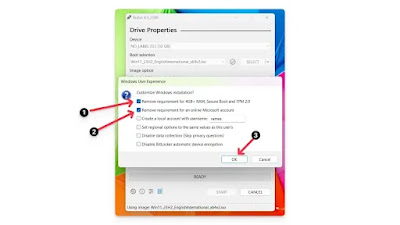
Furthermore, you have the option to burn the ISO file to a DVD for use with older devices or employ the official Windows Media Creation Tool to facilitate the installation of Windows 11 on your computer. In cases where your PC does not meet the minimum system requirements for Windows 11, you can utilize Rufus, an open-source application, to create a bootable USB drive that allows you to bypass these requirements. This tool enables you to circumvent limitations related to TPM, RAM, and the necessity for an online account when installing Windows 11 on your device. Prior to proceeding with the installation of the Windows 11 ISO file, it is essential to review the minimum PC requirements for your device. However, these restrictions can be easily removed using Rufus .

 1. To create a bootable Windows drive utilizing Rufus,

 begin by visiting the Rufus website. Navigate to the Download section and select the most recent version to initiate the download. After the download is complete, double-click the file to proceed with the installation of Rufus on your computer.

Download-rufus-website
Step 2: Now, plug in a USB drive. Ensure that it has at least 8GB of space. Remove and back up any important files from the USB drive.
 
Setup-Refus-to-create-bootable-drive
Step 3: Open Rufus and select your USB drive. Click Select and choose the Windows 11 ISO file you have downloaded.

Remove-minimum-requirement-
 Step 4: Choose GPT as the partition scheme and UEFI as the target system. Name the volume label (e.g., “Windows 11”).

Allow-rufus-to-format-your-drive

 Step 5: Leave the file system as NTFS and click Start. 

Creating-bootable-drive-using-Rufus

Step 6: Confirm the installation and wait for the process to complete.

 Conclusion

To install Windows 11 ISO files without encountering complications, adhere to the outlined steps. Recent updates from Microsoft now provide official public links for downloading Windows 11 files. Furthermore, with certain modifications, it is possible to install Windows 11 on devices that do not meet the standard requirements. Activation of Windows can be completed later through the settings menu. If your previous installation of Windows 11 was activated, the new installation should automatically activate as well .

Before proceeding with an update or performing a complete data wipe to install a fresh version of Windows, it is advisable to back up your data. You may encounter the message ‘This PC can’t run Windows 11’. To resolve this, ensure that you select options to eliminate restrictions when creating a bootable USB with Rufus. Another frequent issue is the absence of a media driver, which can be rectified by using a different USB port or downloading the latest driver. Additionally, partition issues may arise; to address this, confirm that your PC has sufficient storage available.

7Best Password Managers

password managers

To ensure the online safety of your family, it is advisable to provide them with a password manager. As your family becomes more familiar with the internet, they will likely begin registering for various accounts and services. Each of these accounts poses a potential security threat if they opt to reuse passwords or create weak, easily guessable ones. Alleviate the burden of security concerns by utilizing the most effective password managers designed for families.

1. Dashlane

Dashlane
Dashlane is recognized as one of the leading password management solutions available. It stands out as an excellent choice for individual users and also provides substantial benefits for families. The family plan is priced at $7.49 per month, with an annual billing option of $89.99.

This family plan accommodates up to ten premium accounts and features dark web monitoring, real-time phishing alerts, 1GB of file storage, unlimited device synchronization, unrestricted password sharing, and a centralized dashboard for managing family members. Additionally, Dashlane offers a complimentary VPN service to enhance your online privacy.

Dashlane is compatible with Windows 11, macOS, iOS, and Android, and it provides extensions for Safari, Edge, Chrome, and Firefox, allowing usage on other platforms such as Linux, which are not directly supported .

Download: Dashlane for Android | iOS | Windows | macOS | Chrome | Firefox | Edge


2. Proton Pass

Proton Pass
 Proton Pass is a comprehensive password management solution developed by the same privacy-centric organization that created Proton Mail and Proton VPN. The family plan is priced higher than all other options listed, at $29.99 per month or $23.99 per month with an annual subscription. This plan accommodates up to six users and offers several notable features, including access to all of Proton's applications and services.

Additionally, Proton Pass provides dark web monitoring, a centralized dashboard for user management, unlimited synchronization across devices, unlimited shared folders, 3TB of file storage, two-factor authentication (2FA) utilizing passkeys, priority customer support, a feature for concealing email addresses, and secure sharing of login credential s.

Download: Proton Pass for Android | iOS | Windows | macOS | Linux | Chrome | Firefox | Safari


3. 1Password

1Password
1Password is a comprehensive solution that provides considerable flexibility for family users. The family plan, as a standard offering, accommodates up to five members, with pricing starting at $6.95 per month or $4.99 per month for an annual subscription. For households with more than five individuals, 1Password permits the addition of extra members at a rate of $1 per month for eac h.

The service includes 1GB of document storage for each member, priority support, two-factor authentication, unlimited item sharing, a centralized management dashboard, unlimited device synchronization, and alerts for data breaches.

Additionally, it features a unique Travel Mode that temporarily removes sensitive information from your device, ensuring safe passage across borders.

Download: 1Password for Android | iOS | Windows | macOS | Linux | Chrome | Firefox | Edge | Brave

4. Bitwarden

Bitwarden
 Bitwarden is an open-source solution that is considered one of the top password managers available. The family plan is designed for up to six members and is priced at $3.33 per month when billed annually at a total of $40.

For those who wish to keep their passwords stored locally, Bitwarden provides a self-hosting option. To assist you in determining the most suitable choice for your requirements, we have prepared a comprehensive comparison of cloud-based and local password managers.

Download: Bitwarden for Android | iOS | Windows | macOS | Linux | Chrome | Firefox | Opera | Brave | Edge | Vivaldi

5. Keeper

Keeper
Keeper offers several key features, such as unlimited device synchronization, 10GB of storage capacity, unlimited item sharing, advanced two-factor authentication, emergency access, dark web monitoring, and priority customer support. The service accommodates up to five users, each with their own private vault .

The family plan is priced at $6.25 per month, with an annual billing option of $74.99. While Keeper is among the pricier options in the market, it is an outstanding choice for those seeking additional storage for photos, videos, and documents.

Download: Keeper for Android | iOS | Windows | macOS | Linux | Chrome | Firefox | Opera | Brave | Edge | Vivaldi | Safari


6. LogMeOnce

LogMeOnce
LogMeOnce offers a family plan that begins at $4.99 per month. This password management solution provides 10GB of secure storage, a family management dashboard, unlimited device synchronization, unrestricted item sharing, emergency access, two-factor authentication, vault security audits, and activity reports, supporting up to six family members .

Additionally, it includes unique features not commonly found in other password managers, such as scheduled logins, remote logout capabilities, and anti-theft measures. While LogMeOnce is certainly one of the most comprehensive password managers available, many of its additional features may be considered superfluous.

Download: LogMeOnce for iOS | Chrome | Edge | Windows | macOS | Linux

7. RoboForm

RoboForm
RoboForm's family plan accommodates up to five members for an annual fee of $47.75. Notable features encompass support across multiple platforms, vault health assessments, secure sharing of credentials, emergency access, two-factor authentication, shared file folders, an integrated authenticator, unlimited synchronization across devices, cloud backup, and web form completion .

Similar to several alternatives in this category, RoboForm does not provide a monthly payment option; instead, it offers plans for one, three, and five years.

Download: RoboForm for Android | iOS | Windows | macOS | Chrome | Firefox | Edge


How to View and Unblock Blocked Numbers on iPhone

Blocked Numbers on iPhone


It is advisable to block numbers on your iPhone if you are frequently receiving spam calls. However, there may be instances where you inadvertently block the wrong individual, necessitating the unblocking process to resume receiving their calls and messages. The following instructions will guide you through this procedure.

How to Access and Unblock Blocked Numbers on iPhone

When you block a contact on your iPhone, that individual is unable to call, text, or FaceTime you. Your device directs calls from blocked contacts straight to voicemail without alerting you to any missed communications.

The blocked list on your iPhone applies to phone calls, text messages, iMessage, and FaceTime alike. To unblock a contact, you simply need to remove their number or contact details from this list. The steps to do so are as follows:

1. Open the Settings application on your iPhone.
2. Navigate to Apps > Phone > Blocked Contacts to see all contacts you have blocked.
3. Swipe left on the contact you wish to unblock.
4. Tap Unblock to remove that individual from your Blocked list.

 How to Stop Your iPhone from Silencing Unknown Callers

Are you still experiencing missed calls or messages despite having an empty "Blocked Contacts" list? This issue may arise if the "Silence Unknown Callers" feature is activated on your iPhone. When this feature is turned on, your iPhone automatically mutes calls from individuals not saved in your contacts.

To disable the silencing of unknown callers on your iPhone:

1. Launch the Settings application on your iPhone.
2. Navigate to Apps > Phone.
3. Scroll down and select the Silence Unknown Callers option.
4. Disable the Silence Unknown Callers toggle.

phone-app-settings-menu-on-iphone

 Similarly, you can unblock messages from unknown senders on your iPhone. To do so, go to Settings > Apps > Messages > Unknown & Spam and turn off the Filter Unknown Senders option.

silence-unkown-callers-option-in-iphnoe-settings

  To mitigate concerns regarding spam calls, consider installing an application such as TrueCaller, which assists in identifying unknown callers and alerts you to calls that may be worth answering.

If you wish to unblock a particular contact or all unknown callers on your iPhone, the procedure is relatively simple. Furthermore, there are methods available to determine if your phone number has been blocked by someone if you find yourself unable to contact them.

How to Fix "SIM Not Provisioned MM 2" Error

sim-to-esim-transfer-illustration-

 Is your Android device or iPhone unexpectedly displaying the "SIM not provisioned MM2" error, particularly after inserting a new SIM card? There is no need for concern; this message indicates a specific issue, and there are steps you can take to resolve it effectively.

Understanding the "SIM Not Provisioned" Error

The "SIM not provisioned" error generally signifies that your device is unable to connect with your mobile carrier's network. This issue can arise for various reasons. If you are using a new SIM card, it is possible that the carrier has not yet activated it. Additionally, if you have recently changed devices or reinserted the SIM card, it may not be properly seated. This error may also occur due to issues with your carrier's server or if your SIM card has been blocked.

In cases where your device shows the "SIM not provisioned for voice" error, it indicates that you are unable to make voice calls. The most frequent cause of this issue is that your line has been disconnected from your carrier account.

For users of dual-SIM devices, the error may specify a particular number, such as "SIM 1 not provisioned" or "SIM 2 not provisioned." Furthermore, if you have transitioned from a physical SIM to an eSIM that has not yet been activated, you may encounter an "eSIM not provisioned" error.

 1. Activate and Deactivate Airplane Mode

A straightforward method to address the "SIM not provisioned MM2" error is to toggle airplane mode. This action temporarily disconnects the mobile network and internet, allowing your device to refresh its connections and potentially rectify the problem.

For Android devices, swipe down from the top of the screen twice to open the Quick Settings panel. Then, select Airplane Mode to activate it. After a brief pause, tap the Airplane Mode icon again to deactivate it. For iPhone users, navigate to Settings and utilize the Airplane Mode switch to enable and disable the feature.

muo-android-sim-not-provisioned-airplane

Wait for your phone to make a fresh connection with the mobile network. If all goes well, the "SIM not provisioned MM2" error should no longer appear.

2. Restart Your Phone

Although it may appear improbable, turning your phone off and then back on can occasionally rectify the "SIM not provisioned" error. Therefore, it is advisable to attempt this solution.

For Android devices, press and hold the Power button or the Power + Volume Up buttons, depending on your specific model, to bring up the shutdown menu. Then, select Restart. Restarting an iPhone is equally straightforward. After your device powers back on, verify whether the issue persists.

3. Properly Insert the SIM Card


Have you recently transitioned to a new phone or reinserted the SIM card? If that is the case, the SIM card may not be properly seated, potentially leading to the error.

Begin by powering off your phone and utilizing a SIM ejector tool to remove the SIM card. Insert the tool into the small hole adjacent to the SIM tray to eject it. Once the SIM card is removed, gently blow on it and wipe it with a lint-free cloth to eliminate any dust or debris .

Carefully reinsert the cleaned SIM card into the tray, ensuring it is positioned correctly. Look for a sticker or engraving near the SIM card slot that indicates the proper orientation for the SIM. After reinserting the SIM, power your phone back on and check if the "SIM not provisioned" error still appears. 

Properly Insert the SIM Card

4. Activate Your SIM Card

Typically, your carrier is expected to activate the SIM card within 24 hours after it has been inserted into a new device. If activation does not occur within this timeframe, there are generally three methods available to facilitate the process:

1. Call an automated service number.
2. Send a text message.
3. Access the activation page on the carrier's official website .

These methods are generally efficient and uncomplicated, although their effectiveness may vary depending on the support provided by your carrier. Once the SIM is successfully activated, any associated error messages should be resolved.

If your SIM card was previously active, the issue may stem from the SIM card itself. In such instances, obtaining a new SIM card from your carrier would be advisable. While you can contact your network for help, visiting the carrier's store in person may yield quicker results.

5. Update Carrier Services

As with many functions on your Android device, the interaction between the phone and mobile networks is managed through an application.

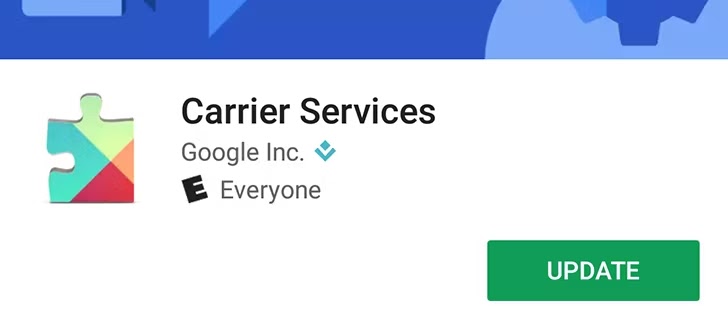
Carrier Services is a Google application that is preinstalled on Android devices and is subject to regular updates. If you encounter the "SIM card not provisioned MM 2" error without having changed your phone or SIM card, it may indicate an issue with Carrier Services. To resolve this, please follow these steps :

Access the Carrier Services section on the Play Store. Should an Update button be present, select it to update the application and determine if this resolves the issue.

For iPhone users, carrier settings updates can be verified by navigating to Settings > General > About. If an update is available, a "Carrier Settings Update" notification will appear. Select Update to initiate the installation process.


6. Reach Out to Your Carrier or Network Provider

If all other options have been exhausted, it may be beneficial to contact your carrier's customer support. Provide them with details regarding the error message and the troubleshooting steps you have already undertaken. They should be equipped to assist you in diagnosing any potential issues related to your device, location, or account, and offer recommendations to resolve the underlying problem.

The primary purpose of your phone is to facilitate communication with others. However, errors such as "SIM not provisioned MM2" can occasionally disrupt this function and lead to complications. Fortunately, the aforementioned steps should help you address the issue effectively.