

This is default featured slide 1 title

Go to Blogger edit html and find these sentences.Now replace these sentences with your own descriptions.This theme is Bloggerized by Lasantha Bandara - Premiumbloggertemplates.com.

This is default featured slide 2 title

Go to Blogger edit html and find these sentences.Now replace these sentences with your own descriptions.This theme is Bloggerized by Lasantha Bandara - Premiumbloggertemplates.com.

This is default featured slide 3 title

Go to Blogger edit html and find these sentences.Now replace these sentences with your own descriptions.This theme is Bloggerized by Lasantha Bandara - Premiumbloggertemplates.com.

This is default featured slide 4 title

Go to Blogger edit html and find these sentences.Now replace these sentences with your own descriptions.This theme is Bloggerized by Lasantha Bandara - Premiumbloggertemplates.com.

This is default featured slide 5 title

Go to Blogger edit html and find these sentences.Now replace these sentences with your own descriptions.This theme is Bloggerized by Lasantha Bandara - Premiumbloggertemplates.com.

5 Best Cloud Storage Services 2024

  Utilizing cloud storage is the most efficient method for storing and sharing files. With numerous options available, selecting the ideal cloud storage service can be a challenging task. Below are the top seven cloud storage services recommended for file storage and sharing.

1 Google Drive

Google Drive stands out as one of the top-notch cloud storage solutions available today. It boasts an exceptionally generous free tier, providing users with 15GB of storage space (although this allocation is shared across other Google products such as Gmail and Photos).

In addition to its ample free storage, Google Drive offers a plethora of features that enhance user experience. These include effortless search functionality, efficient organization tools, seamless file sharing, and collaborative capabilities. While Google Drive is closely integrated with Gmail, it also allows users to share files with non-Gmail accounts.

Should the 15GB storage limit fall short of your requirements, Google Drive offers the option to upgrade through Google One. This comprehensive subscription service encompasses all of Google's offerings and enables users to purchase up to 2TB of cloud storage at an affordable price. Even for its paid tiers, Google Drive remains one of the most cost-effective cloud storage services on the market.
 

2 Microsoft OneDrive

Microsoft OneDrive provides a reliable cloud storage solution for backing up and sharing files online, especially if you are a fan of the Microsoft ecosystem.

OneDrive offers excellent file sharing capabilities, allowing users to share files with either everyone through a public link or specific individuals by adding their email addresses. Users can also control whether recipients can edit or only view the shared files.

To access OneDrive, a Microsoft 365 account is required, which includes 5GB of cloud storage and 15GB of mailbox storage. Additionally, users can utilize basic versions of Microsoft's applications and services. However, 5GB may not be sufficient for all backup needs, prompting Microsoft to offer paid plans with increased storage options.

Users can opt for Microsoft 365 Basic (100GB of cloud storage) at $1.99 per month or $69.99 per year, or Microsoft 365 Personal (1TB) at $6.99 per month or $19.99 per year. The latter plan includes additional benefits such as premium access to various Microsoft apps and services like Teams, PowerPoint, Word, Excel, and Defender. Families can also benefit from cost savings by subscribing to Microsoft 365 Family.


3 iCloud

Despite Apple's reputation for creating services exclusive to its ecosystem, iCloud Drive can be utilized without an Apple device. As a backup solution, iCloud Drive serves as a viable option even if you are not already within Apple's ecosystem.

If you possess an Apple device, iCloud serves as an ideal backup solution due to its seamless integration into the system. An Apple device such as an iPhone can efficiently back up a wide range of data, including photos, videos, notes, messages, mailboxes, app data for specific apps, and even system backups.

iCloud provides 5GB of complimentary storage, with additional paid options available for users requiring more space through Apple's iCloud+ subscription service.

The service presents various storage upgrade choices, extending up to 12TB. These options consist of 50GB ($0.99/month), 200GB ($2.99/month), 2TB ($9.99/month), 6TB ($29.99/month), and 12TB ($59.99/month).


4 pCloud

pCloud stands out as a unique option among cloud storage providers due to its independence from major technology companies. Despite this, pCloud offers a compelling alternative thanks to its additional features. For instance, pCloud distinguishes itself by offering a lifetime plan and a 500GB storage option, which are not commonly found in other services.

In addition to the 500GB storage option, pCloud provides various storage tiers, including a 2TB option and an exclusive lifetime plan with 10TB of storage. The platform also boasts a versatile file-sharing feature that allows users to password-protect files and set expiration dates for shared links, ensuring the security of shared content. It is worth noting that pCloud imposes traffic limits on shared links.

With the 500GB plan, users are restricted to 500GB of shared link traffic on their public links. Higher-tier plans have bandwidth limitations that correspond to the storage size. However, it is unlikely that users will reach these limits unless they intend to distribute files publicly through pCloud.
 

5 Dropbox


 Dropbox has established a strong presence over the years, consistently appearing in articles highlighting the top online storage services. This is no coincidence. As a specialized cloud storage platform, it offers a wide array of functionalities that simplify the process of backing up and sharing files.

While it does provide a complimentary 2GB of storage, users can upgrade to paid plans for additional space, such as the 2TB or 3TB storage options. At $11.99/month for 2TB and $19.99/month for 3TB, Dropbox may not be the most budget-friendly cloud storage service available.

Nevertheless, Dropbox includes various supplementary features that could justify the cost for some users. These features encompass PDF editing capabilities, PDF annotation tools, image editing functions, file security measures, password management options, and transfer analytics, among others.


How to Fix iPhone Not Sending Pictures to Android


 Experiencing difficulty in transferring a photo from your iPhone to an Android device? A minor error in the recipient's number or a deactivated setting could be causing the issue. We will investigate various solutions to ensure your pictures are successfully sent through the Messages app.

1. Check the Number You're Texting 

 If you are attempting to send a photo from your iPhone to an Android user, and they are not receiving it, the initial step you should take is to verify that you are sending the message to the accurate phone number.

 Frequently, individuals have a tendency to overlook minor errors such as this, and inaccurately entering a digit or two in a phone number could be the cause of your message not being received.

Verify the recipient's phone number to guarantee the accuracy of the contact information. If the phone number is correct, the recipient may have blocked your number.

2. Make Sure Cellular Data Is Enabled 

To ensure a smooth MMS message sending experience, it is essential to verify the availability of Wi-Fi or cellular data. This can be easily done by enabling either of these options.

To check your internet connectivity, simply run a speed test on a web browser.

To activate both Wi-Fi and cellular data, access the Control Center on your iPhone. For iPhones with Face ID, swipe down from the top-right corner of the screen. For iPhones with a Home button, swipe up from the bottom.


3. Relaunch the Messages App

 To resolve the issue, you can follow these steps:

1. Swipe up and hold to view the background app on your iPhone's Home Screen.
2. Locate the Messages app and swipe up to force quit the app.

By doing this, you will be able to refresh the app and restart it.

4. Update Carrier Settings 

 If you are unaware, your carrier service periodically releases updates to enhance the connectivity of your iPhone. The reason you may be experiencing connectivity issues could be due to outdated carrier settings.

One effective solution to resolve the problem of not receiving texts from Android users is by updating your carrier settings. Here are the steps to follow:

1. Open the Settings app on your iPhone and navigate to General.
2. Select About and allow a moment for the information to load.
3. If a notification for an update is displayed, proceed by tapping the Update button.


After this, go back to the Messages app and check if you can send the message. If you don't get an update pop-up, that means you're using the latest carrier settings. 


5. Update Your iPhone

 It is crucial to keep your iPhone's software up to date as it not only introduces new features and bug fixes but also enhances your overall experience. Apple consistently releases software updates for iPhones to enhance performance, introduce new functionalities, and ensure everything runs smoothly.

If you haven't updated your iPhone's software recently, you may encounter difficulties in sending picture messages. However, you can easily resolve this issue by updating to the latest iOS version available.

6. Enable Send as SMS

Using the Messages app, you can send a text, photo, or video to another iPhone user via iMessage. However, if you want to send anything to an Android user, you need to enable the Send as SMS option on your iPhone by following these steps:

  1. Launch Settings on your iPhone and select Messages.
  2. Scroll down and find the Send as SMS option and toggle it. 
  3. After this, return to the conversation and try sending the image again.


7. Enable MMS Messaging 

 Ensure that the MMS (Multimedia Messaging Service) option is enabled for the Messages app on your iPhone to avoid encountering this error. Simply follow these steps to activate it and start sharing images through your carrier.

  1. Open Settings on your iPhone.
  2. Scroll down and select Messages.
  3. Scroll down and enable the toggle next to MMS Messaging. 


If you don't see the MMS Messaging option in the Settings menu, it might be because your carrier doesn't support it. However, if you've enabled the option, return to the Messages app and try resending the image. Next, ask the recipient to check if their carrier supports MMS messaging on their Android device.

How to Move Messages from Your Old iPhone To Your New iPhone


Rest assured that transferring your message history from your old iPhone to your new one is a simple and straightforward process. There is no need to worry about losing any important data when upgrading to your new device.

1. Transfer Messages Using iCloud Sync

 To effortlessly transfer messages to your new iPhone, utilizing iCloud sync is highly recommended. Similar to how your photos, contacts, notes, and other data can be synchronized across devices using the same iCloud account, your messages can also be seamlessly transferred to your new iPhone.

To enable iCloud sync on your previous iPhone, kindly adhere to the subsequent steps:

1. Launch the Settings app and tap on your Apple ID name located at the top.
2. Select iCloud and choose "Show All" from the menu that appears.
3. Tap on "Messages in iCloud" and activate the toggle switch next to "Use on this iPhone."

By following these instructions, you will successfully enable iCloud sync and ensure a smooth transfer of your messages to your new iPhone.

Once you have finished the aforementioned steps, proceed to sign in with your iCloud account on your new iPhone and activate message syncing using the identical procedure.

Allow some time for the messages to be transferred to your new iPhone. In case you come across any difficulties or errors, consult our comprehensive guide on resolving typical iCloud problems on your iPhone.

2. Restore Messages Using iCloud Backup

 If you have not yet set up your new iPhone, you may want to consider making an iCloud backup on your previous iPhone and then restoring it onto the new device. This approach allows you to transfer all of your data, including messages, from your old iPhone in a single process.

To initiate an iCloud backup on your previous iPhone:

1. Launch the Settings app and select your name at the top.
2. Navigate to iCloud > iCloud Backup.
3. Activate the toggle next to "Back Up This iPhone" and tap on the "Back Up Now" option below.


 The duration of this procedure may vary depending on the amount of data you have.

After the backup has been successfully created, proceed with the setup of your new iPhone. Follow the initial instructions displayed on the setup screen and opt for the Restore from iCloud Backup option located on the Apps & Data page. Input your Apple ID details and select the latest iCloud backup available.

Allow the restoration process to complete, and your messages will be visible on the new iPhone. At this point, you have the option to delete messages from the old iPhone if desired.

3. Restore Messages Using a PC or Mac

An alternative method for transferring messages to your new iPhone is by restoring a local iPhone backup that was created on your computer. This process is similar to the previous method mentioned and will restore all of your iPhone data, including your messages.

To create a backup of your data on your old iPhone, please follow these steps:

1. Connect your old iPhone to your computer using a cable. If this is your first time connecting it, tap on "Trust" on your iPhone and enter your passcode.
2. On a Windows PC, open the Apple Devices app. On a Mac, open Finder.
3. From the left pane, select your iPhone and navigate to the General tab.
4. Choose the option to back up all of the data on your iPhone to your computer and click on the "Backup Now" button.
5. You will be prompted to specify whether you want to encrypt the data or proceed without encryption. Make your selection accordingly. 

Once the backup process is complete, proceed to connect your new iPhone to the same computer. This time, select the Restore iPhone option and all your previously backed-up data, including messages, will be successfully transferred to your new device.

Rest assured, the process of moving your messages to your new iPhone is quick and efficient, regardless of the chosen method. If you require assistance with transferring other data, please consult our comprehensive guide on transferring data from your old iPhone to the new one.


7 Social Media Mistakes to Avoid (Protect Your Privacy)


 Given the increasing instances of identity theft and harassment on social media, it has become imperative to prioritize the protection of our privacy. It is crucial to be cautious about our online activities in order to prevent the exploitation of our personal information. To ensure a secure online presence and minimize the risk of data breaches, it is essential to avoid making these common errors on social media platforms.

1 Giving Apps Access to Your Social Media Accounts


To enhance your social media experience or access premium features, it is advisable to steer clear of third-party applications or extensions. These external tools often require access to your account, and upon reviewing their terms and conditions, you may discover that they can gain permission to view your photos, chats, profile details, and more.

Similarly, the option to utilize social login for other applications has become widespread. Although it may appear harmless to log in to a game or another app using your social media credentials, it grants these applications access not only to your account information but also potentially to the login details you utilized.

Hence, it is recommended to refrain from sharing this sensitive data with third-party applications and avoid using your social media account for social sign-ins.

2 Leaving Your Profile Public 

 When your social media profile is set to public, it becomes visible to anyone who comes across it. This means that your photos, personal information, and all your posts are accessible to everyone. Unfortunately, scammers can take advantage of this information that is readily available to the public. They can use your identity to create fake profiles and pretend to be you.

This not only damages your reputation but also poses a threat to your loved ones. Impersonators might use your identity to ask for money or try to extract private details from your contacts. To mitigate these risks, it is advisable to adjust your social media settings to private, allowing only your approved friends to view your profile.

Most social media platforms provide the option to enhance privacy settings. If your profile is currently public, it is recommended to switch it to private for added security.

3 Divulging Too Much Personal Information 

 It is important to exercise caution when sharing personal information, even if your profile is set to private. Avoid disclosing details like your date of birth, phone number, or home address, as these can be used for identity theft. Additionally, refrain from taking selfies with sensitive documents such as your ID, passport, or credit/debit card. Furthermore, it is advisable not to overshare about your health, relationships, or financial status. Similarly, avoid discussing work-related matters to protect your company's privacy.

4 Neglecting Your Privacy Settings 

Neglecting fundamental security measures can expose your account and privacy to vulnerabilities. This encompasses the use of a weak and easily predictable password, as well as employing the same password for multiple social media platforms. Similarly, the absence of two-factor authentication simplifies the task for hackers to breach your account and compromise your privacy.

To mitigate these risks, it is imperative to consistently employ a strong and hard-to-guess password, ensuring that each social media account has a unique password. Additionally, refrain from storing your login credentials online. If you have not yet activated two-factor authentication, it is advisable to enable it in order to enhance the security of your account.

Furthermore, it is recommended to review your privacy settings on your social media profiles to ensure that you are not unintentionally sharing unwanted data.


5 Sharing Your Travel Plans 

It is crucial to refrain from sharing your travel plans on social media as it can pose a significant risk to your security. By announcing your vacation plans, you inadvertently inform potential burglars that your home will be unoccupied, thereby increasing the likelihood of theft. Additionally, providing real-time check-ins during your trip can expose your whereabouts to fraudsters, who may exploit this information.

To safeguard your privacy, it is advisable to abstain from posting your travel plans on social media platforms. Furthermore, refraining from check-ins and removing location details from your photos can effectively prevent the disclosure of your whereabouts.
 

6 Engaging With Unknown People

There are individuals in our social media friend lists who are merely acquaintances. These connections may have been established through a public group or post, without any real-life interaction or video calls. Despite their status as strangers, they remain on our friends list.

Even with privacy measures in place, these unfamiliar individuals can still present a significant privacy threat, as their true intentions are unknown. They may have connected with you solely to monitor your online activities and potentially exploit the information in the future. If you have unknown individuals on your list, it may be wise to consider removing them.

If unfriending seems too extreme and you wish to maintain the connection, it is advisable to adjust your privacy settings to restrict their access to your activities. Furthermore, it is recommended to refrain from adding strangers to your friend list moving forward. 


7 Using Your Social Media Accounts in Public or on a Public Computer 

Lastly, the security of your privacy can be compromised by using your social media account on a public computer. Keyloggers can be installed by fraudsters to capture your login details, hackers can intercept your data, and leaving your account logged in on the device can allow unauthorized access later on.


To prevent such risks, it is advisable to refrain from accessing social media on public computers or in public places.


Furthermore, it is important to avoid connecting your phone or computer to public Wi-Fi networks, as they are often vulnerable to hackers who can intercept shared information. It is safer to use your phone's data when in public instead of connecting to unsecured networks.


These precautions are essential to protect your privacy while using social media platforms. Regularly check the devices logged into your account and be cautious of any unfamiliar devices, as they could indicate a compromise of your account.


5 Best iPhone Features 2024

 In early 2023, I made the transition from the iPhone 13 Pro to the Galaxy S23 Ultra. Ever since then, I have explored various flagship Android phones, such as the Google Pixel 8 Pro. However, it is evident that none of them possess the distinctive features that Apple provides exclusively on its iPhones.

1 Lock Screen Customization 

Apple debuted lock screen customization for iPhones with the release of iOS 16 in 2022. A year later, in 2023, Google followed suit by introducing lock screen customization in Android 14. However, the level of customization available on Android devices falls short of what is offered on iPhones.

On an iPhone, users have the ability to personalize their lock screen with widgets, wallpapers featuring depth effects, and a variety of filters. In contrast, Android 14 provides only limited options for lock screen customization.

With Android 14, users can select from a few clock styles, change to a different Material You color scheme, or opt for a separate wallpaper. Unfortunately, the customization options end there, as there are no depth effects or widgets available to enhance the appearance or functionality of the lock screen.
 

2 Continuity Camera

Continuity Camera is a convenient feature that enables you to utilize your iPhone as a webcam for your Mac. It functions seamlessly, as your Mac will automatically display a notification to wirelessly connect your iPhone as a webcam once you open a video calling application.

Google has introduced the capability to use Pixel phones as webcams through an Android 14 Feature Drop. Nevertheless, its execution falls short compared to iPhones. It necessitates a wired USB connection for operation, and even then, the image quality is subpar. Moreover, it is not as user-friendly as Continuity Camera. To add to that, this feature is exclusive to Google Pixel phones.

I have utilized Continuity Camera multiple times with my iPhone 13 Pro during Zoom and Google Meet calls. What sets this feature apart is the ability to access camera modes like Center Stage, Portrait Mode, Desk View, and more. Conversely, Google's implementation is basic and lacks these options.

3 Superior Video Quality 


 Since transitioning from my iPhone 13 Pro, I have experimented with various flagship Android phones. These include the Galaxy S23 Ultra, Pixel 8 Pro, and even the Xiaomi 14 Ultra with its impressive 1-inch sensor. However, none of them can rival the video quality delivered by the iPhone 13 Pro.

It's not solely about the video resolution, bitrate, or level of detail. Videos captured by the Pixel and Xiaomi 14 Ultra appear splendid as long as there is ample lighting. In low-light situations, though, the iPhone produces cleaner videos with minimal noise.

Furthermore, I have observed that the Pixel and Xiaomi struggle to capture satisfactory audio in challenging scenes. Additionally, the Xiaomi phone exhibits noticeable OIS jitter when panning, a flaw absent in my iPhone.

The Galaxy S23 Ultra comes closest to matching the video quality experience of the iPhone 13 Pro. However, it falters when swiftly switching between lenses, resulting in a jittery and unsmooth transition. This issue persists even in the Galaxy S24 Ultra.

Throughout my extensive use of the iPhone 13 Pro, I have recorded countless videos without encountering dropped frames or jitter when switching between lenses. Moreover, unlike the iPhone, the Galaxy lacks the capability to record ProRes or Dolby Vision videos.

Granted, Android phones offer supplementary features and flexibility for video recording, such as the ability to shoot in 8K resolution. Nevertheless, these advantages become inconsequential if the footage is plagued by issues.

4 Integration With Other Apple Devices 

Android does not have the same level of seamless integration that iPhone users enjoy with other Apple products. For instance, the ability to copy something on an iPhone and paste it on an iPad, or vice versa, is not available on Android devices. Additionally, features like seamlessly handing off browsing sessions or FaceTime calls from an iPhone to an iPad, or using an iPad to answer calls on an iPhone, are not as smoothly executed on Android devices. While some Samsung or Xiaomi devices offer similar functionality, it usually requires owning devices from the same brand and the implementation is not as refined as that of Apple. iPhones also have deep integration with Macs, which is something that Android lacks. If you use a Windows PC, you can replicate some of this functionality with Microsoft's Phone Link app, but Mac users are out of luck in this regard.

5 MagSafe Accessories 


 After experiencing the convenience of using MagSafe accessories with my iPhone, I cannot imagine going back to traditional options. Apple's innovative standard offers a wide range of accessories that can easily snap onto the back of the iPhone using magnets. From cases to car chargers, bike mounts, and wallets, there are plenty of MagSafe options available.

Fully embracing MagSafe with my iPhone 13 Pro has made my daily routine much smoother. Not only does it eliminate the frustration of aligning the phone with a charging pad, but it also enhances convenience in various situations.

Transitioning to an Android device highlighted the practicality and ease of MagSafe in everyday use. Being able to effortlessly attach my iPhone to a car mount using magnets was a game-changer. While the Qi2 wireless charging standard brings similar benefits to Android devices, it is disappointing that none of the top Android phones released in early 2024 have adopted MagSafe technology.


Edit PDF Files for Free (Online & Offline)


 PDF files have become an essential part of our daily lives, used by students, professionals, and many others. The PDF format is known for its security features, making it a reliable option for sharing documents online.

One of the key advantages of PDF files is that they cannot be easily modified. To make changes to a PDF, you will need to use specialized software or online tools designed for editing PDF files.

Edit PDF Files Offline at No Cost

For those looking to edit PDF files using software, we have compiled a list of top-rated programs for editing PDF files on a computer.

1. Adobe Acrobat

 Adobe Acrobat is a software suite developed by Adobe Inc. that allows users to view, create, manipulate, print, and manage files in Portable Document Format (PDF). The software is available in several versions, including Adobe Acrobat Reader, which is free and primarily used for viewing PDFs, and Adobe Acrobat Pro, which offers advanced features for creating and editing PDF documents.

Adobe Acrobat Pro includes features such as the ability to create PDFs from various file formats, combine multiple documents into a single PDF, edit text and images within PDFs, add annotations and comments, digitally sign documents, and protect PDFs with passwords or encryption. It is widely used in business, education, and personal contexts for tasks such as creating reports, forms, contracts, and other types of documents that need to be shared securely and reliably.

Adobe Acrobat has become the standard software for working with PDF documents, and its features are continually updated to meet the evolving needs of users.

 1. First, open the PDF file in Acrobat. Then, click on the Edit PDF tool at the right panel.

2. Then click on the text or image you wish to edit in the file. Now, add or edit the text on the pdf page.


 You can add, replace, move, or resize images on the page using selections from the Objects list. That’s it! Save the file, and you will have a newly edited PDF.

2. Using Inkscape

Inkscape is a free and open-source vector graphics editor used for creating and editing scalable vector graphics (SVG) and other vector-based formats. It's available for Windows, macOS, and Linux.

First, download and install Inkspace according to your OS from here.
 

Inkscape offers a wide range of features for creating illustrations, diagrams, icons, logos, and other graphic designs. Some of its key features include:

1. **Drawing Tools**: Inkscape provides a variety of tools for drawing shapes, lines, curves, and freehand sketches. Users can manipulate these elements with precision using control points and handles.

2. **Object Manipulation**: Users can manipulate objects by moving, scaling, rotating, skewing, and flipping them. Inkscape also supports grouping and layering to organize complex designs.

3. **Text Support**: Inkscape allows users to add and manipulate text within their designs. It supports various fonts, styles, and text effects.

4. **Bezier and Spiro Curves**: Inkscape supports both Bezier and Spiro curves, which provide different methods for creating smooth and precise curves.

5. **Path Operations**: Users can perform various operations on paths, such as combining, breaking apart, and intersecting them. Inkscape also supports boolean operations like union, difference, and intersection.

6. **Extensions and Plugins**: Inkscape features a robust extension system that allows users to enhance its functionality with additional tools and effects. Users can also create their own extensions using scripting languages like Python.

7. **File Formats**: In addition to SVG, Inkscape supports importing and exporting various file formats, including PNG, PDF, EPS, and AI.

Inkscape is widely used by graphic designers, illustrators, web developers, and hobbyists due to its powerful features, ease of use, and open-source nature, which encourages community contributions and collaboration.

Few other software to edit PDF files Offline

Below, we have shared a few tools that you can use to edit  PDF files for free.

1. Icecream PDF Split & Merge

Icecream PDF Split & Merge is a software tool designed to help users split and merge PDF files. It's developed by Icecream Apps and is available for Windows operating systems.

Here's how the main features of Icecream PDF Split & Merge work:

1. **Splitting PDFs**: Users can split PDF documents into smaller files based on specific criteria such as page ranges, individual pages, or even by groups of pages. This feature is useful for breaking down large PDFs into more manageable sections.

2. **Merging PDFs**: Users can merge multiple PDF files into a single document. This is handy when combining several related PDFs into one cohesive file, such as merging chapters of an ebook or combining various reports into a single document.

3. **Preview**: The software typically includes a preview feature that allows users to visualize the PDF files before splitting or merging them. This helps ensure that users select the correct pages or documents for the operation.

4. **Drag-and-Drop Interface**: Icecream PDF Split & Merge often provides a user-friendly drag-and-drop interface, making it easy for users to add PDF files to the application and arrange them in the desired order before merging.

5. **Customization Options**: Depending on the version and features available, users may have options to customize the output files, such as setting the page size, margins, and orientation.

Icecream PDF Split & Merge is often used by individuals and businesses alike to manage PDF documents more efficiently, whether it's breaking down large files for easier sharing or consolidating multiple documents into a single file for organization or presentation purposes.

2. PDF Buddy


 PDF Buddy is an online platform that allows users to edit, sign, and collaborate on PDF documents without the need to download or install any software. It provides a range of tools for manipulating PDF files directly from a web browser.

Here are some of the key features of PDF Buddy:

1. **Editing**: PDF Buddy enables users to edit text, images, and other elements within PDF documents. Users can add, delete, or modify text, as well as insert or replace images as needed.

2. **Annotation**: Users can annotate PDFs by adding comments, highlighting text, drawing shapes, and adding sticky notes. These annotation tools are useful for reviewing and collaborating on documents with others.

3. **Form Filling**: PDF Buddy supports filling out interactive PDF forms, including text fields, checkboxes, radio buttons, and drop-down menus. Users can input data directly into form fields and save or print the completed forms.

4. **Signing**: The platform allows users to digitally sign PDF documents using their mouse or touchpad. This feature is handy for adding signatures to contracts, agreements, or other legally binding documents.

5. **Collaboration**: PDF Buddy supports real-time collaboration, enabling multiple users to work on the same PDF document simultaneously. Changes made by one user are instantly visible to others, facilitating teamwork and document review processes.

6. **Cloud Storage Integration**: PDF Buddy integrates with cloud storage services like Google Drive, Dropbox, and OneDrive, allowing users to access and save PDF files directly from their online accounts.

7. **Security**: PDF Buddy prioritizes the security and privacy of user data. It typically uses encryption and secure connections to protect sensitive information transmitted between users' devices and its servers.

PDF Buddy is popular among individuals and businesses looking for a convenient and user-friendly solution for working with PDF documents online. Its intuitive interface and comprehensive set of features make it a versatile tool for various PDF-related tasks, from basic editing to collaborative document management.

3. Ableword


 AbleWord is a free word processing software that provides basic functionality for creating and editing documents. It's unique in that it supports both reading and writing Microsoft Word documents (DOC and DOCX) while also offering features similar to those found in standard word processors.

Here are some key features of AbleWord:

1. **Editing Word Documents**: AbleWord allows users to open, view, edit, and save documents in Microsoft Word formats (DOC and DOCX). This compatibility makes it a convenient alternative for users who need to work with Word documents but prefer a free solution.

2. **Text Editing**: Users can create and edit text within documents using standard formatting options such as font styles, sizes, colors, alignments, and bullet points.

3. **Inserting Images and Tables**: AbleWord supports the insertion of images and tables into documents, allowing users to enhance their content with visual elements and organize data more effectively.
4. **Spell Check**: The software typically includes a built-in spell checker to help users identify and correct spelling errors in their documents.

5. **PDF Conversion**: AbleWord can also convert documents to PDF format, providing users with the ability to share their files in a universally accessible format.

6. **Page Layout**: While not as robust as dedicated desktop publishing software, AbleWord allows users to adjust page margins, orientation (portrait or landscape), and paper size to customize the layout of their documents.

7. **Support for Additional Formats**: In addition to Word documents, AbleWord may support opening and saving files in other formats such as RTF (Rich Text Format) and TXT (plain text).

AbleWord is often used by individuals and organizations seeking a lightweight and straightforward word processing solution that is compatible with Microsoft Word documents without the need for expensive software licenses. While it may not offer the extensive feature set of premium word processors, it provides essential tools for creating and editing text documents in a user-friendly interface.

4. PDFelement

 
PDFelement is a comprehensive PDF editing software developed by Wondershare. It offers a wide range of features for creating, editing, annotating, converting, and securing PDF documents. PDFelement is available for both Windows and macOS platforms, and it's widely used by individuals, businesses, and organizations for various document management tasks.

Here are some key features of PDFelement:

1. **Editing**: PDFelement allows users to edit text, images, and other elements within PDF documents. Users can add, delete, or modify text, as well as insert or replace images and graphics.

2. **Annotation**: The software provides a variety of annotation tools for marking up PDF documents, including highlighting, underlining, strikethrough, and adding comments and sticky notes.

3. **Form Filling**: PDFelement supports filling out interactive PDF forms, allowing users to input data into text fields, checkboxes, radio buttons, and drop-down menus. It also enables users to create and edit form fields within PDF documents.

4. **Conversion**: Users can convert PDFs to and from various file formats, including Microsoft Word, Excel, PowerPoint, HTML, image formats, and more. This feature is useful for repurposing content and sharing documents in different formats.

5. **OCR (Optical Character Recognition)**: PDFelement includes OCR technology, which allows users to convert scanned PDFs and images into editable and searchable text documents. This feature is particularly beneficial for digitizing paper documents and making them editable.

6. **Redaction**: PDFelement enables users to permanently remove sensitive information from PDF documents using redaction tools. This helps protect confidential data and ensure compliance with privacy regulations.

7. **Page Management**: Users can manipulate pages within PDF documents by rearranging, rotating, inserting, deleting, and extracting pages as needed.

8. **Security**: PDFelement offers various security features to protect PDF documents, including password encryption, permissions settings, and digital signatures.

PDFelement's intuitive interface and powerful features make it a popular choice for individuals and businesses looking to efficiently manage their PDF documents. It provides comprehensive tools for editing, annotating, converting, and securing PDFs, making it a versatile solution for various document management needs.

Foxit Phantom PDF

Foxit PhantomPDF is a robust PDF editor developed by Foxit Software. It's available for Windows operating systems and offers a wide range of features for creating, editing, annotating, converting, and securing PDF documents. Foxit PhantomPDF is used by individuals, businesses, and organizations worldwide for various document management tasks.

Here are some key features of Foxit PhantomPDF:

1. **Editing**: PhantomPDF allows users to edit text, images, and other elements within PDF documents. Users can add, delete, or modify text, as well as insert or replace images and graphics. It offers precise control over text formatting and layout.

2. **Annotation**: The software provides a comprehensive set of annotation tools for marking up PDF documents, including highlighting, underlining, strikethrough, adding comments, stamps, and drawing shapes. Annotations can be used for reviewing and collaborating on documents.

3. **Form Filling**: PhantomPDF supports filling out interactive PDF forms, allowing users to input data into text fields, checkboxes, radio buttons, and drop-down menus. It also enables users to create and edit form fields within PDF documents.

4. **Conversion**: Users can convert PDFs to and from various file formats, including Microsoft Word, Excel, PowerPoint, HTML, image formats, and more. This feature facilitates sharing and repurposing content across different platforms.

5. **OCR (Optical Character Recognition)**: PhantomPDF includes advanced OCR technology, allowing users to convert scanned PDFs and images into editable and searchable text documents. This feature enhances document accessibility and enables text extraction from scanned documents.

6. **Redaction**: PhantomPDF enables users to permanently remove sensitive information from PDF documents using redaction tools. This helps protect confidential data and ensures compliance with privacy regulations.

7. **Page Management**: Users can manipulate pages within PDF documents by rearranging, rotating, inserting, deleting, and extracting pages as needed. PhantomPDF offers powerful tools for managing document structure and organization.

8. **Security**: PhantomPDF offers robust security features to protect PDF documents, including password encryption, permissions settings, digital signatures, and certificate-based security.

Foxit PhantomPDF's intuitive interface, extensive feature set, and strong security capabilities make it a popular choice for professionals and businesses seeking a comprehensive PDF solution. It provides the tools necessary for creating, editing, annotating, converting, and securing PDF documents, helping users streamline their document management workflows.
 

8 Top Websites to Download Windows Software for Free


When searching for free software downloads on Google, you will come across numerous websites claiming to be the best. However, not all of these websites are reliable sources for downloading Windows software. Some of them may include custom installers, adware, and other unwanted elements along with the installation files.

To ensure your safety, it is advisable to visit websites with a good reputation. There are still a few websites that do not bundle unnecessary software with their downloads. In this article, we have shared some of these trustworthy websites.

When it comes to downloading software for Windows, nothing can be more secure and reliable than the official software websites. For instance, if you wish to download and install VLC for Windows, you can visit the Videolan.org website and download the official version of VLC Media Player.

One of the advantages of downloading software from official websites is that you will always get the latest version available. Additionally, there may be opportunities to avail seasonal deals and offers.

Therefore, before considering third-party options, it is recommended to visit the official software websites.

1. FilePuma


FilePuma offers a wide range of Windows software and PC games for download, along with news articles. One of the notable advantages of FilePuma is its categorization of software, making it easier for users to navigate. On the left side of the website, you can find popular software categories such as Security & Firewall, Browsers, Communications, Developer Tools, and more. Moreover, all the software provided on the platform is guaranteed to be free from spyware and viruses.

2. FileHippo

This website is among the top choices for downloading freeware files. It boasts an extensive collection of the best and most commonly used software that you may require on a daily basis. Therefore, it is highly recommended that you explore this site.

3. Cnet Download

 It is among the most ancient websites featured on the list, having been founded approximately 15 years ago. A wide array of software for various platforms such as Mac, Linux, and Windows can be discovered here. Additionally, mobile applications from CNET Downloads are also available.

4. Microsoft Store

 
The Microsoft Store is already integrated into Windows 10/11 and also has a web version that allows you to browse through the complete software catalog. As the Microsoft Store offers software directly from the original sources, you can be assured that all downloads are completely safe to use. Additionally, the user interface is sleek and requires a Microsoft account to begin using the Microsoft Store.

5. Sourceforge


 SourceForge is a highly recommended software downloading portal that offers a wide range of tools. It provides a user-friendly interface where software files are well-organized, making it easy for users to navigate. Additionally, detailed information about the software is available, ensuring a better understanding of its features and functionalities.

6. Software Informer

This website is among the top choices for users seeking a variety of software to fulfill their downloading needs. Despite not being as extensive as other platforms, it offers high-quality software that is regularly updated, ensuring value for users.

7. Softonic.com

Softonic stands as one of the most established download portals, offering a wide range of freeware, shareware, and trial versions of software. One of the key advantages of Softonic is its consistent updates and regular addition of new software options.

The platform currently boasts a catalog of approximately 106,000 freeware, shareware, and trial software versions.

8. Filehorse

Filehorse bears a striking resemblance to the Filehippo website mentioned in the article. The platform offers a wide range of software options, including both premium and free versions that are available for download. Additionally, there is a dedicated section for freeware files, allowing users to easily access and download free Windows software.

Moreover, the homepage of the site showcases the 'Most Popular Downloads', enhancing the convenience of searching for software.

Frequently Asked Questions:
Which site is the most reliable for downloading software?


The answer to this question varies depending on the type of software you are looking to download. For tools and utilities, Softpedia and Microsoft Store are highly recommended. However, if you are interested in downloading open-source software, Github is the go-to choice.

Which websites are the best for downloading paid software?

When it comes to premium software, it is always advisable to download from the official websites. This ensures that you have a platform to address any issues that may arise during the payment process. Additionally, you will receive the latest version of the software, free from any security concerns.

Are cracked software safe to download and use?

No, cracked software is never safe to download and use. Installing cracked software from an unreliable source can pose serious security risks, as it often contains malicious scripts that operate silently in the background. It is always recommended to obtain software through legitimate means.

Are these software download websites safe to visit?

Yes, all the websites mentioned in the article are completely safe to visit. Furthermore, the software they host is genuine and free from any security or privacy issues.

These websites provide a secure and free platform for downloading Windows software. We hope this article has been helpful to you! Please feel free to share it with your friends. If you have any further questions or concerns, please let us know in the comment section below.


How to Restore a Hacked Instagram Account


Protect Your Instagram From Being Hacked?

Now that we have discussed the various ways in which your Instagram account can be hacked, let us focus on the solution. Fortunately, safeguarding your account from unauthorized access is not a complex task. It simply requires a few simple steps to activate security features and exercising caution.

Activate Two-Factor Authentication (2FA)

The initial line of defense against Instagram hacking is to enable two-factor authentication, commonly known as 2FA. This feature adds an extra layer of protection by generating a unique one-time password (OTP) after entering your password.

Even if your password falls into the wrong hands, having 2FA enabled on your Instagram account ensures that the intruder will still need to input the OTP from your mobile device to gain access. If you require assistance, we have a helpful guide on how to enable 2FA on your Instagram (and other social media accounts).

Regularly Verify Your Credentials

As previously mentioned, using the same password for multiple services puts all your accounts at risk if it is compromised in one place. To mitigate this risk, it is advisable to periodically check if any of your accounts have been exposed in a data breach.


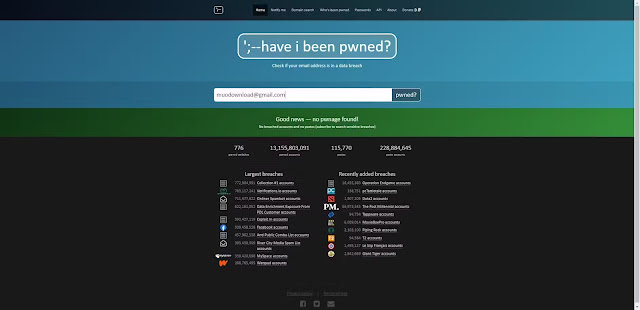
Most password managers and web browsers have this feature integrated, but the most straightforward method to verify if a specific password has been compromised is by utilizing Have I Been Pwned. This platform keeps track of data breaches and leaked passwords. To assist you further, we have provided a comprehensive guide on how to utilize Have I Been Pwned to check for leaked passwords.

In the event that you discover your Instagram password has been leaked, it is crucial to promptly change it to a newer and stronger password. This will help prevent unauthorized access to your account.

Additionally, we recommend using unique passwords for each website or social account you have. Although it may seem tedious, this practice is essential for ensuring the utmost security for your accounts.

Having distinct passwords for each account, especially your social media accounts, is crucial for maintaining their security in the event of a breach. If you struggle to remember multiple passwords, consider utilizing password managers tailored to your needs.

Avoid Using Third-Party Applications

Despite the appealing features offered by third-party apps, it is advisable to refrain from using them. By utilizing such apps, you are essentially entrusting your account activities and data to a third party, namely the developer of the app.

Even if you have confidence in the developer, these apps are susceptible to man-in-the-middle (MITM) attacks. For a more in-depth understanding of MITM attacks, we have a comprehensive explanation available. In essence, these attacks involve intercepting your data as it travels to the servers of an official app or website, enabling hackers to compromise your account.

How to Restore a Hacked Instagram Account 

In case your account has already been hacked, Instagram does provide a way to regain access to it. First, if your account still has the original username, email address, or phone number linked to it, you can try to reset your password via the forgot password option on the login page. 


In the event your account is hacked, and the hacker has changed the username, email address, and/or phone number you used to log in, head over to Instagram's support section and follow the steps on-screen.

Instagram should send you a login link that might require you to take a video selfie. This is done to ensure only you can regain access to your account. Once the verification is complete, you should be able to reset your password and get your account back.